# NovelAI in SillyTavern: standard method and sillyimages | AniworldAI
> Source: https://novelai.aniworldai.org/en/sillytavern · Markdown version of the page for AI agents and LLMs
SillyTavern · two ways to connect
# NovelAI in SillyTavern: setup with screenshots
Choose the standard generator or the sillyimages extension. Each has its own steps below: where to click, which URL to copy and how to enter your key.
No card needed: 3 NovelAI images and 3 on Qwen-Image and FLUX, valid 7 days. The key appears here and in Telegram.
## Standard method
Start here if you are setting up image generation for the first time
1. ### Open the built-in Image Generation
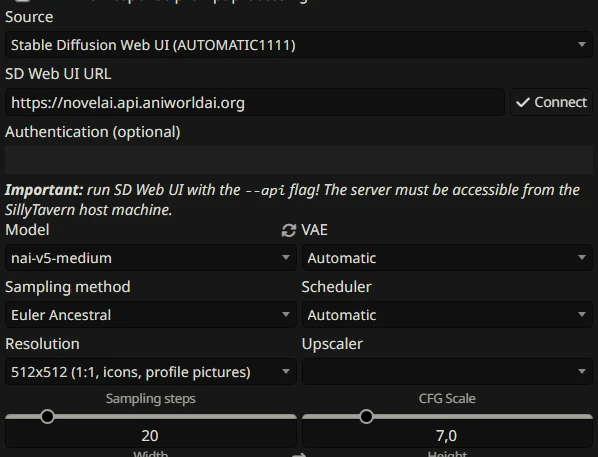
Tap the cubes icon → Extensions → Image Generation with the “?” icon. This panel has a Source field and a Connect button.
2. ### Choose the source
Set Source to Stable Diffusion Web UI (AUTOMATIC1111). The server is already running; you do not need to install Stable Diffusion locally.
3. ### Paste the URL and your key
SD Web UI URL`https://novelai.api.aniworldai.org`
**Paste your key as it is**
Paste your complete key. You do not need to add a prefix: `YOUR_KEY`
If you already saved api: before your key, that configuration also works.
4. ### Press Connect
Choose nai-v5-medium under Model. For V4.5 Full, choose nai-v4.5-full.
[ Open the full-size screenshot ↗](https://novelai.aniworldai.org/_astro/sillytavern-native.DYvjmMP2.png)
Standard method: the AUTOMATIC1111 source and our API URL. Paste your key as it is in Authentication. The personal key is hidden.
### Try one command
Copy the command and send it in chat. You can replace a calico cat at the end with your own prompt. These parameters apply to this generation; they do not change your saved sliders.
Test command for chat
```
/sd model=nai-v5-medium sampler="Euler Ancestral" scheduler=Automatic steps=14 cfg=7 width=832 height=1216 hires=false faces=false edit=false extend=false a calico cat
```
**You do not need to adjust every slider**
Connecting loads the available models and samplers. Size, CFG and steps remain your tavern’s settings. The server adjusts the size to supported limits, caps CFG at 10 and uses 14 steps for V5 Full Medium; V4.5 Full uses up to 28.
**Other ways: the sillyimages extension**if you want images right inside character messages
## sillyimages extension
Images inside character messages with Inline Image Generation.
### Naistera: settings for the selected model
1. ### Open or install sillyimages
If it is not installed: Extensions → Install extension, then paste the repository URL:
sillyimages`https://github.com/0xl0cal/sillyimages`
2. ### Find the connection-profile panel
Open the Image Generation panel that contains Connection and a Profile dropdown. This is the sillyimages extension panel.
3. ### Choose Naistera and paste the URL
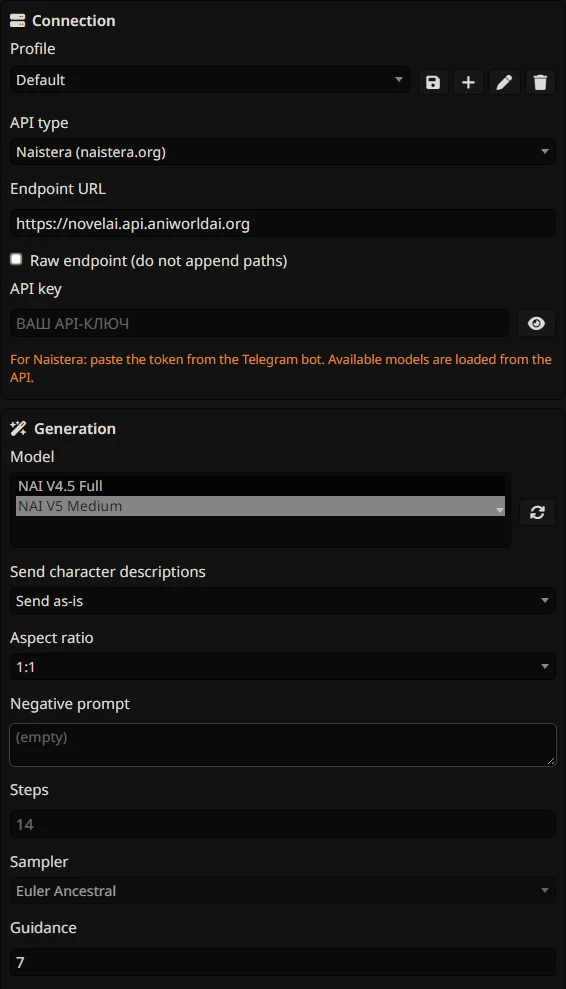
API type: Naistera (naistera.org). Paste our full URL below, without /api or /v1 at the end. Leave Raw endpoint unchecked.
Endpoint URL`https://novelai.api.aniworldai.org`
4. ### Paste the key as it is
**Paste your key as it is**
API key takes only your key. Do not add the api: prefix here. `YOUR_KEY`
5. ### Refresh the list and choose a model
Press ↻ beside the model list. Choose NAI V5 Full Medium or NAI V4.5 Full. Their IDs are listed below:
NAI V5 Full Medium`novelai-v5-medium`
NAI V4.5 Full`novelai-v4.5`
Choosing a model shows Steps, Guidance (CFG) and Sampler with supported values. Their limits and the sampler list load automatically. Save the connection with the disk icon beside the profile name.
[ Open the full-size screenshot ↗](https://novelai.aniworldai.org/_astro/sillyimages-naistera.BytREioq.png)
sillyimages: Naistera mode, our API URL, Raw endpoint off and two available models. Settings for the selected V5 Full Medium are loaded; the personal key is hidden.
Under Polling, you can enable Use job polling API. The extension will then check when the result is ready and display the image. Keep the tab open while it is being drawn.
Alternative: OpenAI-compatible mode
If you already use OpenAI-compatible mode, you can keep it. Its separate model IDs are listed below.
1. ### Choose OpenAI-compatible and paste the URL
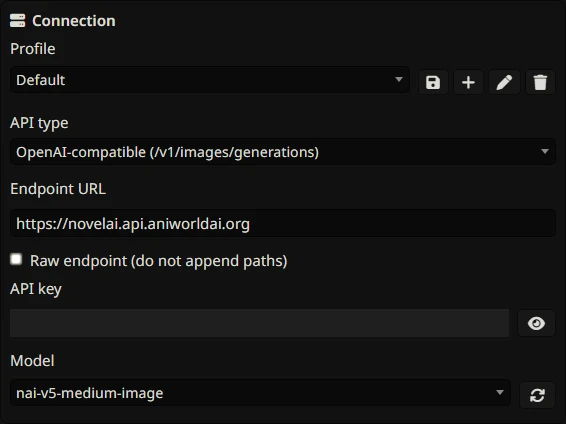
API type: OpenAI-compatible (/v1/images/generations). Paste the full URL below, without /v1 at the end. Leave Raw endpoint unchecked.
Endpoint URL`https://novelai.api.aniworldai.org`
2. ### Paste the key as it is
API key takes only your key. Do not add the api: prefix here.
3. ### Refresh the list and choose a model
Press ↻ beside the model list and choose nai-v5-medium-image or nai-v4.5-full-image. Save the profile with the disk icon beside its name.
The -image ending identifies the same models for this list. Your plan and quota stay the same.
[ Open the full-size screenshot ↗](https://novelai.aniworldai.org/_astro/sillyimages-openai.FC0E44gr.png)
sillyimages: OpenAI-compatible API, the base URL, Raw endpoint off and a model ending in -image. The personal key is hidden.
How images appear
sillyimages recognises image-generation tags in character messages. Add the format to your preset or character instructions, for example:
Example tag in a character reply
```
 ```
[Read about tags and extension features →](https://github.com/0xl0cal/sillyimages)
## Switching from Nano Banana
If you used Nano Banana in sillyimages, switch to our key in the same Naistera mode: the URL is `https://novelai.api.aniworldai.org` with no suffix; pick `qwen-image-2.1` in the model list. It understands scenes described in plain words, draws well-known characters and takes character avatars as references. `flux-3-klein-image` is faster.
Qwen-Image 2.1 and FLUX 3 Klein are in every plan: 50, 75 or 120 images per day, 3 images, once, on the [trial key](https://novelai.aniworldai.org/en#account). The built-in SillyTavern generator (SD WebUI) does not have them; it runs the NovelAI models.
## Image by link in presets
If your preset inserts an image into the post with an
![]() tag and a link, you can switch it to our API without extensions: replace the service URL with `https://novelai.api.aniworldai.org/prompt/` and the token with your key. Link parameters, an example and what to know about the key are in the [“Image by link”](https://novelai.aniworldai.org/en/tavo#link) section.
## If the connection drops
If the connection drops before you receive the image, it is still finished. Repeat the same request to get the finished image without a second charge. This works while the image is being drawn and for 10 minutes after the drop. A new generation after successfully receiving an image creates a new one.
## Connection troubleshooting
- Check which panel you opened. The standard method has Source and Connect. sillyimages has Connection, Profile and Raw endpoint.
- Both methods use `https://novelai.api.aniworldai.org`, without /v1. Paste your key as it is, without a prefix. A saved api:KEY value in the built-in generator also works.
- In sillyimages choose Naistera (naistera.org), leave Raw endpoint off and refresh the model list: novelai-v5-medium or novelai-v4.5. OpenAI-compatible mode uses nai-v5-medium-image or nai-v4.5-full-image. Replace any previously selected Gemini or GPT model.
- In the standard method, an image with text explains a refusal, such as an invalid key or an exhausted daily quota. It also says when the whole limit comes back. Your remaining quota is shown in your [account](https://novelai.aniworldai.org/en#account).
- Still seeing an error? Contact support [@timmek1](https://t.me/timmek1). Include the error text and a screenshot of settings with the key hidden.
Questions
## FAQ
Which method should I choose?
For your first connection, start with the standard method: no extra extension is needed. If you already use sillyimages and want images inside character messages, follow the second block.
Why are there two Image Generation panels?
One is built into SillyTavern and the other is added by sillyimages. The standard panel has Source and Connect; sillyimages has Connection, Profile and Raw endpoint.
Is the key for the standard method and sillyimages the same?
Yes. Paste the key as it is in both methods: in Authentication for the built-in generator and API key for sillyimages. You do not need to add a prefix.
Why do sillyimages modes use different model IDs?
Naistera mode uses novelai-v5-medium and novelai-v4.5 for V5 Full Medium and V4.5 Full. OpenAI-compatible mode uses nai-v5-medium-image and nai-v4.5-full-image. Your plan and quota stay the same.
Are settings applied automatically when I connect?
In sillyimages with the Naistera API type, choosing a model shows Steps, Guidance (CFG) and Sampler with supported values. Parameter limits and the sampler list load automatically. The standard method loads models and samplers; size, CFG and steps stay in your tavern’s settings. Use the ready-to-use test command for a first check.
What happens when the daily quota runs out?
The standard generator displays an image with an explanation and the time when the whole limit comes back. Your day starts with your first image, and 24 hours later the whole limit comes back at once.
Guides
## Every use case, step by step
[
### NovelAI API: Python, JavaScript and curl examples
For those who write code: URLs, examples in Python, JavaScript and curl, and the docs.
](https://novelai.aniworldai.org/en/api)[
### NovelAI in TAVO
TAVO’s built-in generator: API URL, key, models, your own style, image by link for presets and Smart expand.
](https://novelai.aniworldai.org/en/tavo)[
### NovelAI API pricing
Plus, Duke and Emperor for 30 days: how many NovelAI, Qwen-Image and FLUX images each includes, renewal and plan changes.
](https://novelai.aniworldai.org/en/pricing)[
### NovelAI from Russia: pay by SBP, no VPN
Pay by SBP, crypto or Telegram Stars, works without a VPN, no NovelAI account needed.
](https://novelai.aniworldai.org/en/russia)[
### Characters’ look from avatars
The “Images by Not\_Found” plugin for TAVO: how to take the characters’ look from avatars, one model and five steps.
](https://novelai.aniworldai.org/en/refs)[
### Images in TAVO: the fastest way
The fastest way: NovelAI images in TAVO in nine steps, with screenshots and arrows.
](https://novelai.aniworldai.org/en/fast)[
### Setup help
Answer one to three questions and get the guide for your case.
](https://novelai.aniworldai.org/en/help)[
### TAVO preset: an image in every reply
A preset in one click: the text model inserts an image into every reply itself, with no plugins.
](https://novelai.aniworldai.org/en/preset)[
### NovelAI images in your roleplay chats
TAVO and SillyTavern. No VPN and no NovelAI account. Three images are free.
](https://novelai.aniworldai.org/en)